How to send Jira notifications to Google Chat (3 ways)
Last updated: November 2, 2026
Google Chat has no built-in Jira notifications. Every option goes through a Google Chat incoming webhook: a link that lets Jira post into one space. This guide shows three ways to use it, from free and manual to one minute with an app.
Step 0: create a webhook in Google Chat
You need a Google Workspace account (personal Gmail accounts can't create webhooks) and a computer.
- Open Google Chat in a browser and go to the space that should receive the notifications.
- Click the space name at the top → Apps & integrations → Add webhooks.
- Name it “Jira” and click Save.
- Open the More menu (⋮) next to it → Copy link. It starts with
https://chat.googleapis.com/v1/spaces/.
Treat the webhook link like a password. Anyone who has it can post in the space. If Add webhooks is missing, your Workspace administrator has turned webhooks off.
Option 1: Jira Automation “Send web request” (free)
Jira Automation has no Google Chat action of its own, but its Send web request action can post to the webhook.
- In Jira go to Project settings → Automation (or Settings → System → Automation for several projects) and create a rule.
- Pick a trigger, for example Issue transitioned or Issue created.
- Add the action Send web request:
- Web request URL: the webhook link from step 0.
- HTTP method:
POST - Headers:
Content-Type=application/json - Web request body: Custom data, with:
{
  "text": "*{{issue.key}}* {{issue.summary}}\nStatus: {{issue.status.name}} · Assignee: {{issue.assignee.displayName}}\n{{issue.url}}"
}
Save the rule, change an issue and the message appears in the space.
The catch: you need one rule per space and per kind of event, every run counts toward your plan's automation limit, and messages are plain text unless you write Google Chat's card JSON by hand. Each person can't choose their own alerts either.
Keep each issue in one thread
By default every message starts a new thread, which turns a busy space into noise. Google Chat groups messages that share a threadKey. Add this to the end of the webhook URL:
&messageReplyOption=REPLY_MESSAGE_FALLBACK_TO_NEW_THREADand this to the body, so all updates of the same issue land in the same thread:
{
  "text": "...",
  "thread": { "threadKey": "{{issue.key}}" }
}
Option 2: your own script
If you already run a server, a Jira webhook (Settings → System → WebHooks) can call your code, which then posts to Google Chat:
curl -X POST -H "Content-Type: application/json; charset=UTF-8" \
  -d '{"text": "KAN-1 moved to Done"}' \
  "https://chat.googleapis.com/v1/spaces/.../messages?key=...&token=..."
Full control, but you host it, secure it and keep it running. Jira sends user IDs, not names, so you also have to look up names yourself.
Option 3: a Marketplace app
Apps on the Atlassian Marketplace do the rule-writing for you. We make one, Sago Alerts, so take this section with that in mind.
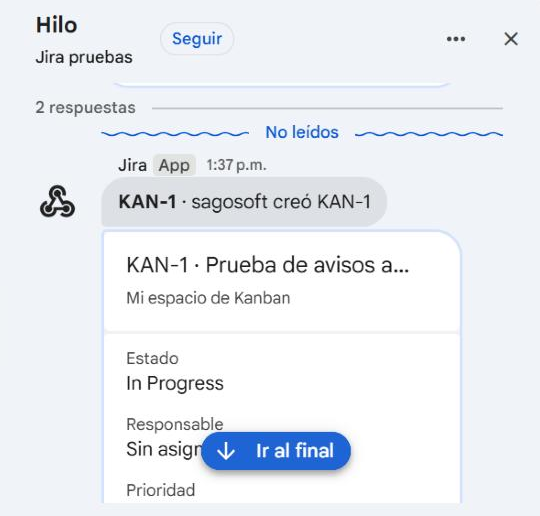
- Paste the webhook link, press Send test, done. No Google sign-in.
- Per space: projects, a JQL filter, which events, and “only status changes into Done”.
- One thread per issue, cards with real names instead of IDs, a compact style and a daily summary.
- Personal alerts: each person sends only their own work (assigned, mentions, watched) to their own space.
- Runs on Atlassian Forge: no external servers, webhook links stored encrypted.
Free for up to 10 users. Get it on the Atlassian Marketplace · Setup guide · 60-second demo
Which one should you use?
| Automation web request | Own script | App | |
|---|---|---|---|
| Cost | Included in Jira | Your server | Free up to 10 users |
| Setup | One rule per space and event | Code and hosting | About one minute |
| Filters | Rule conditions | Anything you code | Projects, JQL, events, statuses |
| Threads | With threadKey | With threadKey | Built in |
| Personal alerts | No | If you build it | Yes |
For one space and one event, a free Automation rule is enough. For several spaces, less noise, or personal alerts, an app saves the upkeep.